Best Practice Analysis
Best Practice Analysis scans your crawled solutions against 12 rules covering deprecated features, unsupported code, naming, error handling, performance, security, maintainability, and configuration. It lists what it finds as issues you can review and resolve. It is free, for every solution.
What It Analyzes
Best Practice Analysis runs when you click Run Analysis, on one solution at a time. It examines the components that the solution's last crawl stored and evaluates them against the rules below. A crawl or a schedule never starts it. Each rule checks for a specific pattern, anti-pattern, or configuration issue that could impact maintainability, performance, security, or reliability.
The analysis runs inside your Dataverse environment as plug-in logic. The names, metadata and documentation of your components never leave your environment. The issues it finds are stored in the Best Practice Issue table in your own Dataverse, where you can review and resolve them at any time. Once Cartographer is activated, it sends VerseBlocks a usage report when you open this page and when an analysis finishes. A report carries counts and IDs, never component names. The privacy policy lists everything Cartographer sends.
How to Run Analysis
- 1Open the Cartographer app and go to Best Practices
- 2Select a crawled solution from the picker in the header
- 3Click Run Analysis
- 4Issues appear below as a list of cards, with summary counts by severity at the top
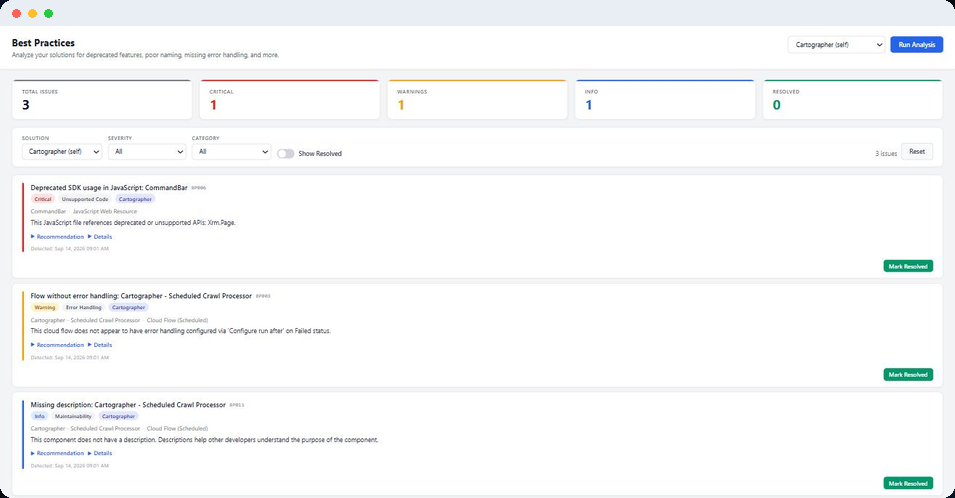
Use the filter bar to narrow the list by solution, severity, or category, and toggle Show Resolved to bring resolved issues back into view.
Best Practices does not give a score. It counts issues by severity and lists each one. The 0 to 100 score belongs to Solution Health, which you open with the Health button on a solution row in Solution Manager.
Severity Levels
Critical
Issues that pose a security risk or rely on deprecated or unsupported code or features. These should be addressed first.
Warning
Issues that may cause problems over time or indicate a deviation from best practices. These should be reviewed and addressed when possible.
Info
Suggestions for improvement that are not urgent. These are recommendations that can improve code quality and maintainability over time.
Rules Reference
The following 12 rules are checked during every Best Practice Analysis run:
| ID | Rule | Severity | Category | What It Checks |
|---|---|---|---|---|
| BP001 | Deprecated Workflow | Critical | Deprecated Feature | Flags any classic workflow. Microsoft recommends Power Automate cloud flows instead of classic workflows |
| BP002 | Synchronous Plugin on Retrieve | Warning | Performance | A plugin step registered synchronously on a Retrieve or RetrieveMultiple message |
| BP003 | Flow Without Error Handling | Warning | Error Handling | A cloud flow with no "Configure run after — has failed" branch on its actions |
| BP004 | Hardcoded GUIDs in JavaScript | Warning | Maintainability | A JavaScript web resource containing literal GUIDs, which break when a solution moves between environments |
| BP005 | Poor Naming Convention | Info | Naming Convention | A component using the default "new_" publisher prefix, or a long lowercase name with no separators |
| BP006 | Deprecated SDK Usage | Critical | Unsupported Code | JavaScript referencing XrmServiceToolkit, Xrm.Page, or other unsupported or internal Microsoft namespaces |
| BP007 | Async Plugin Without Error Logging | Info | Error Handling | Flags asynchronous plugin steps as a reminder to verify they log failures |
| BP008 | Large JavaScript File | Warning | Performance | A large JavaScript web resource, which can affect page load |
| BP009 | Business Rule on All Forms | Info | Configuration | A business rule with no form scoping, so it applies to every form for the table |
| BP010 | Disabled Flow | Info | Configuration | A cloud flow that is currently turned off |
| BP011 | Missing Description | Info | Maintainability | A flow, classic workflow, custom action, or business process flow with no description |
| BP012 | XSS Risk in JavaScript | Critical | Security | JavaScript containing eval(), document.write(), or innerHTML |
Resolving Issues
Each issue card shows its title, rule ID, severity, category, and the affected component, with expandable Recommendation and Details sections for the specifics.
- Mark Resolved — after fixing the issue in your solution, mark it resolved. It drops out of the default list; toggle Show Resolved to bring it back, or Reopen it if you marked it too soon.
- Filter — narrow the list by solution, severity, or category to focus on what matters most.
The issues for a solution also appear in its Report, which you open with the Report button in Solution Manager. There is no export from this page.