Crawling Solutions
Crawling is the foundation of Cartographer. It reads the components in a Dataverse solution and stores a record and a plain-English summary for each one. The Component Dashboard, user guides, reports, exports, Best Practices and search all work from those stored records.
What Crawling Does
When you crawl a solution, Cartographer queries the Dataverse metadata APIs to discover each component of a supported type that belongs to that solution. It reads the raw metadata for each component — table definitions, column schemas, form XML, view FetchXML, plugin step registrations, cloud flow definitions, and more — and stores a normalized record in the Component table. The names, metadata and documentation of your components never leave your environment. Cartographer does send VerseBlocks a usage report when a crawl runs. It includes counts and the display name of the solution crawled, but never component names or summaries. The privacy policy lists everything it sends.
Crawling is solution-scoped, meaning you choose exactly which solutions to crawl. This is not a full-environment blast — you control which solutions are documented and which are ignored. Cartographer is installed in one environment and documents the solutions you add there, one solution at a time. It does not inventory other environments or anything outside those solutions. To cover several environments, install it in each one. It is free, so there is no per-environment cost.
Incremental Crawling
After the first crawl, Crawl Now and scheduled crawls are incremental. Cartographer compares each component's current source against what it captured last time, and only reprocesses the ones that actually changed. A component whose source hasn't changed since the last crawl is skipped, not rewritten.
Fast re-crawls
Re-crawl a solution that hasn't changed and the crawl log reports zero created, zero updated, and everything skipped. For a solution with tens of components, that takes seconds.
Adding a Solution to Crawl
- 1
Open Solution Manager
In the Cartographer app, navigate to Solution Manager in the left sidebar.
- 2
Find the Add Solution row
At the foot of the Configured Solutions section, the Add Solution row has a dropdown of the solutions in your environment, a Frequency dropdown and an Add Solution button.
- 3
Select a solution
Choose the solution you want to crawl from the dropdown. It lists every visible solution in your environment, managed or unmanaged, and managed solutions from Microsoft can be crawled too. The Default solution, the Active solution and any solution you have already added are left out.
- 4
Configure crawl settings
Optionally set how often it should re-crawl — manual only, hourly, every six hours, daily or weekly. Daily is the default. You set the frequency here, because Solution Manager cannot change it afterwards.
- 5
Add and Crawl
Click Add Solution. Adding does not crawl, so click Crawl Now on the new row to start the first crawl. When it finishes, the button shows Indexing and a count while Cartographer makes the new components searchable. Keep the page open until that is done. A banner then reports how many components were created, updated, skipped and removed.
Component Types Discovered
Cartographer discovers components across your solution's data model, user interface, automation, web resources, and security configuration. Each type is processed differently to extract the most useful metadata. Summaries go into detail for types such as cloud flows, JavaScript, forms and plugin steps. Business rules, classic workflows, custom actions and business process flows are described only by their table, and charts, dashboards, desktop flows, canvas apps, custom pages and custom connectors get one line each.
Data Model
- Tables
- Columns
- Relationships
- Global Option Sets
User Interface
- Forms
- Views
- Charts
- Dashboards
- Model-Driven Apps
- Canvas Apps
- Custom Pages
- Site Maps
Automation
- Plugin Assemblies
- Custom APIs
- Plugin Steps
- Cloud Flows (Automated)
- Cloud Flows (Scheduled)
- Cloud Flows (Instant)
- Desktop Flows
- Classic Workflows
- Custom Actions
- Business Rules
- Business Process Flows
Web Resources
- JavaScript
- HTML
- CSS
- Other formats, such as images
Security & Configuration
- Security Roles
- Connection References
- Environment Variables
- Custom Connectors
Crawl Frequency
You choose how often Cartographer re-crawls a solution when you add it, to keep its documentation up to date. Solution Manager cannot change the frequency afterwards.
| Frequency | Description |
|---|---|
| Manual Only | Crawl only when you click "Crawl Now" |
| Hourly | Re-crawls every hour |
| Every 6 Hours | Re-crawls four times a day |
| Daily | Re-crawls once every 24 hours. This is the default. |
| Weekly | Re-crawls once every 7 days |
Re-crawling and Removing Solutions
Re-crawling
Click Crawl Now on any solution to trigger an immediate re-crawl. Incremental crawling means unchanged components are skipped. To re-read every component anyway, open the More actions menu, the three dots at the end of the solution's row, and choose Rebuild everything. It rewrites every component, even unchanged ones, regenerates every summary and re-indexes every component for search. Use it after upgrading Cartographer, because a normal crawl skips unchanged components and so leaves their earlier summary wording as it was. Rebuild everything does not regenerate user guides.
Removing a solution
To stop crawling a solution, open the More actions menu, the three dots at the end of its row in Solution Manager, and choose Remove solution. The confirmation dialog states how many component records will be deleted and requires typing DELETE to confirm. This removes the crawl configuration and all associated component records from the Cartographer database. It does not affect the actual solution in your environment.
Crawl Log
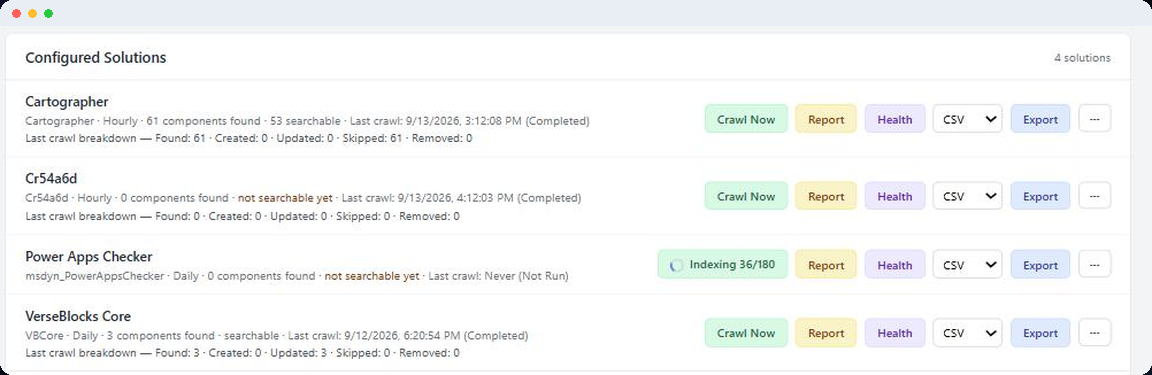
Every crawl operation is recorded in the Crawl Log. Solution Manager shows the latest one on each solution's row:
- The date and status of the last crawl
- Counts of components found, created, updated, skipped, and removed, shown as the last crawl breakdown
Next Steps
Once your solution is crawled, every component already has a plain-English summary, written from templates using the metadata the crawl collected. Crawl Now also indexes the new components, so you can ask questions about them in Semantic Search.