Solution Manager
The central hub for managing which Power Platform solutions Cartographer crawls. Access it from the Cartographer app sidebar → Solution Manager.
License Panel
The License panel at the top of the page shows the activation status, a Tier row that always reads Free, and the number of components Cartographer tracks, with a note that there is no limit. Cartographer is free with every feature included.
Before you activate, the panel shows Not Configured and an Activate Cartographer button that opens the Activation page. Activation asks for your name, company name and email address. There is no licence key to enter. Crawling, exports, user guides and Solution Health need an activated Cartographer. The privacy policy lists what Cartographer sends to VerseBlocks.
Adding a Solution to Crawl
- 1
Select a solution
Use the dropdown to pick a managed or unmanaged solution from the environment. It lists visible solutions only, and leaves out the Default and Active solutions and any you have already added.
- 2
Choose a crawl frequency
Options: Manual Only, Hourly, Every 6 Hours, Daily, or Weekly.
- 3
Click "Add Solution"
The solution appears in the Configured Solutions list and is ready to crawl.
Configured Solutions List
Each configured solution shows its name, then its unique name, crawl frequency, how many components were found, whether they are searchable, and the date and status of the last crawl. After a crawl, a second line breaks the result down into Found, Created, Updated, Skipped and Removed. The controls on each row are described below, and the three dots at the end open the More actions menu.
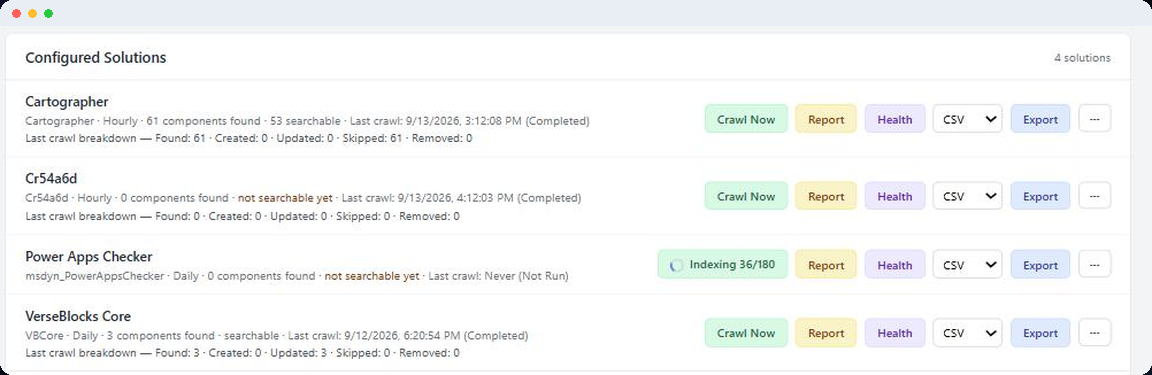
Crawl Now
Reads the solution right now, whatever its frequency. Components that have not changed since the last crawl are skipped. The page then makes new components searchable, one at a time, and the button shows Indexing while it works. Keep the page open until it finishes. Scheduled crawls skip that step, so the next Crawl Now indexes what they added.
Report
Builds an HTML report of the solution in your browser and opens it in a new tab. If your browser blocks pop-ups, it downloads as an .html file instead. The report opens with a count of components by type, then lists each component with its entity and summary. If Best Practices has recorded issues for the solution, a table of them follows. The top bar has Print / Save as PDF, which opens your browser's print dialog. The report is not stored.
Health
Opens a Solution Health dialog for the solution, with a score out of 100 and the findings behind it. See Solution Health below.
Export
Choose CSV, JSON, XLSX or DOCX in the dropdown beside the button, then click Export to download the solution's components in that format. See Exports below.
Rebuild everything
Found in the More actions menu. Re-reads and rewrites every component even if it has not changed, which regenerates every summary, then re-indexes everything for search. Use it after upgrading Cartographer, because a normal crawl skips unchanged components and leaves their old summaries in place. It does not regenerate user guides.
Rebuild search index
Found in the More actions menu. Recomputes the solution's search index without crawling. Use it only if search results look wrong.
Remove solution
Found in the More actions menu. Deletes Cartographer's data for the solution, including its components, summaries, diagrams, user guides, crawl logs and Best Practices issues. You type DELETE to confirm, and it cannot be undone. The solution in your environment is not touched.
Solution Health
Click Health on a solution row to open its Solution Health dialog. It shows a score out of 100 and a box called How this score was reached, which starts at 100 and lists every deduction. A Critical finding costs 35 points, a Warning costs 15 and an Info finding costs nothing. The score never drops below 0.
Solution Health checks three things. A disabled plugin step in the solution is a Warning. An environment variable with no value and no default is Critical when it is required and Info when it is optional. Components modified in the last 7 days are Info. Nothing is saved, so there is no score history, and the check needs an activated Cartographer.
For live monitoring of cloud flows, plugin steps, environment variables and business rules across the whole environment, open Compass.
Exports
Component data for a solution can be exported in four formats:
CSV
Flat, spreadsheet-friendly rows
JSON
Structured data for scripts and integrations
XLSX
Excel workbook
DOCX
A readable Word report, not a data dump
The DOCX export reads like a report rather than a table: a title, the generation date, a component count, then a heading per component type with each component's name and summary written out as prose.
CSV, JSON and XLSX carry nine fields for each component: Component Type, Name, Unique Name, Entity, Trigger Event, Execution Stage, Managed, Summary and Summary Source. Dates, IDs, status and raw metadata are left out, and so are components that have been removed from the solution. Exporting needs an activated Cartographer.
Search
A Search section appears in Solution Manager, above the Configured Solutions list, once at least one component has been indexed. On a new install that means after you activate, add a solution and click Crawl Now. Type a question in plain English, such as "who is allowed to read records", choose All solutions or one solution, and click Search. The top 10 components come back ranked by meaning, each with its name, its type, its solution and a similarity percentage.
A small open-source embedding model bundled in the solution does the ranking. It runs inside your environment, makes no network calls and writes no text. What search can find and how to read the percentages are covered on the Semantic Search page.
User Guides
The User Guides section lists all Model-Driven Apps discovered across your crawled solutions. For each app, you can:
- Generate Guide — Create a new user guide for the app, built from the crawled component data
- View — Read the generated guide in a modal overlay, and use Copy Markdown to paste it into a wiki or any Markdown editor
- Regenerate — Refresh an existing guide with the latest component data