Calling VerseDocs from Power Automate
Every one of the 69 actions is an ordinary Dataverse Custom API, so there is no custom connector to install and no authentication to configure. One built-in step reaches all of them.
The one step every flow shares
- 1Add an action and search for the Microsoft Dataverse connector.
- 2Choose Perform an unbound action.
- 3Set Action Name to the action you want —
vdocs_TemplateDocx,vdocs_PdfMerge, and so on. They appear in the dropdown once the solution is imported. - 4Fill in the parameter fields the designer generates for that action.
- 5The outputs —
OutFileContent,Result,Meta— become dynamic content for later steps.
Parameter conventions
Every action reuses the same handful of parameter names, so once you know the pattern you can use any action without looking it up.
| Parameter | In / Out | Shape |
|---|---|---|
FileName | in | Plain string. Optional; echoed back where relevant. |
FileContent | in | Base64 of one input file. Power Automate’s File Content from a SharePoint, OneDrive or email trigger is already base64 — pass it straight through. |
Files | in | JSON array for multi-file actions: [{"name":"a.pdf","content":"<base64>"}]. |
Data | in | JSON string: the values to merge into a template, or a small payload object. |
Options | in | JSON string: per-action settings. |
Text | in | Plain UTF-8 text, not base64 — used by actions that work on short text rather than a file. |
OutFileNameOutFileContentOutContentType | out | A single output file: its name, its base64 content, and its MIME type. |
OutFiles | out | JSON array when an action produces several files (vdocs_PdfSplit, vdocs_ZipExtract). Parse it, then use Apply to each. |
Result | out | JSON string for actions that return data rather than a file. Parse it to reference individual fields. |
Meta | out | JSON string with details about the run, e.g. {"pages":3,"durationMs":840}. On PDF conversion it also names the rendering engine that ran. |
Building the JSON parameters
Data and Options are JSON passed as a single string field. The reliable way to build one is a Compose action holding the JSON literal, with dynamic content dropped inside the string, then reference that Compose as the parameter value. Doing it inline invites the designer to mangle the quotes.
Using the output file
OutFileContent is base64 text. Most connector fields that accept a file — SharePoint and OneDrive “Create file”, Outlook attachments — are typed as binary, so wrap it:base64ToBinary(outputs('...')?['body/OutFileContent'])What you must not do is re-encode it — it is already base64, so never wrap it in
base64(...) on top.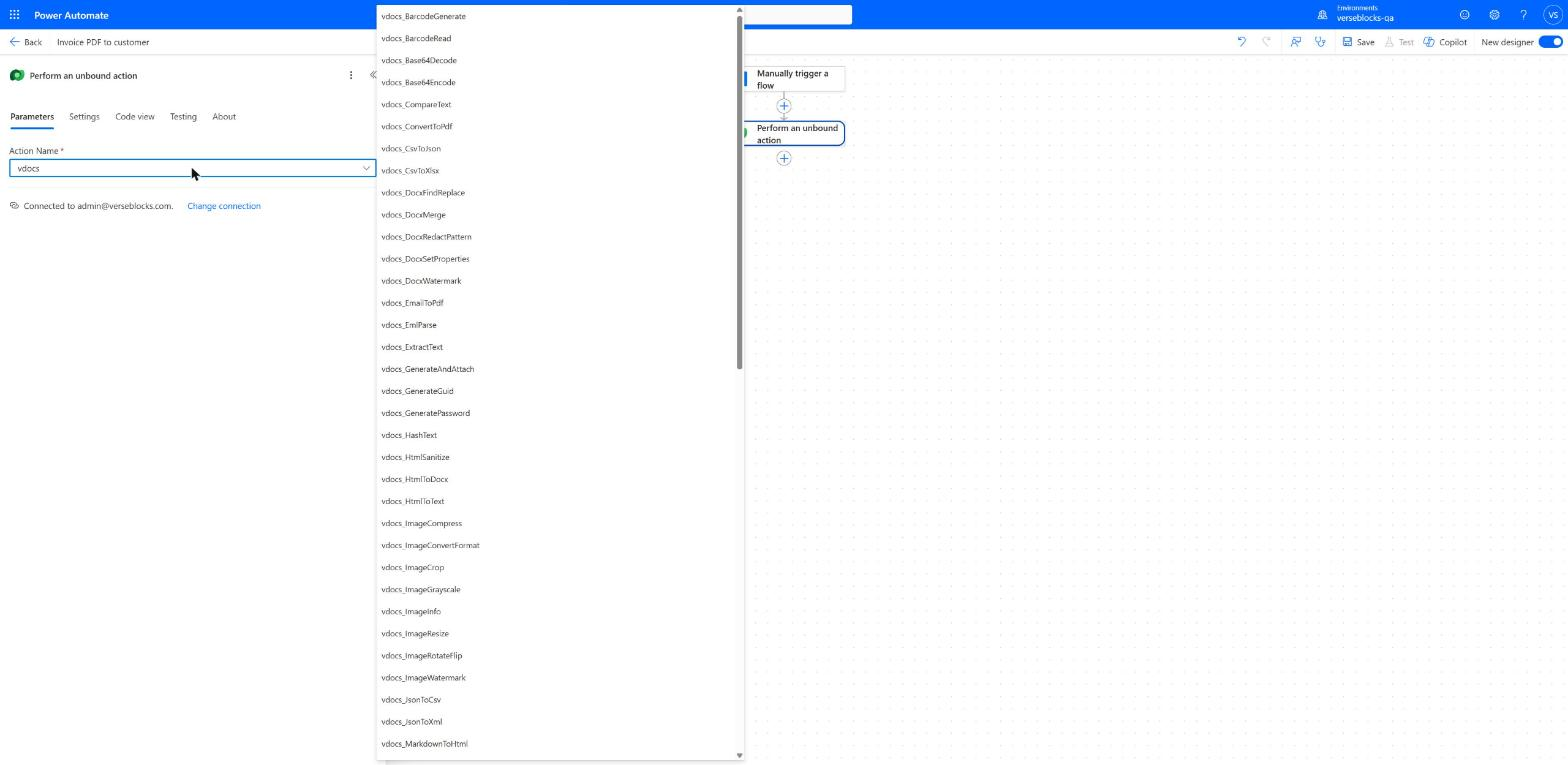
vdocs to filter the list.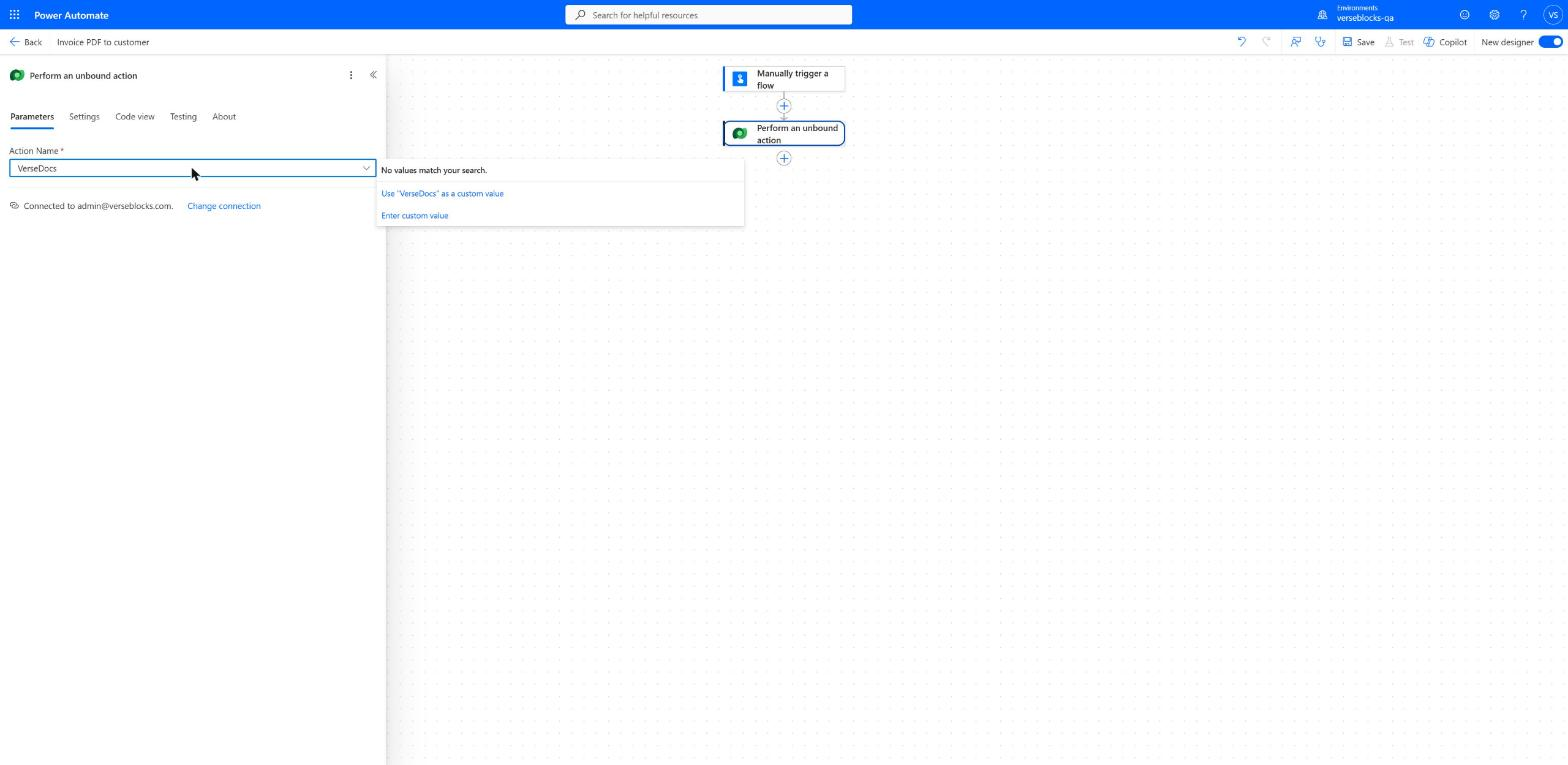
vdocs.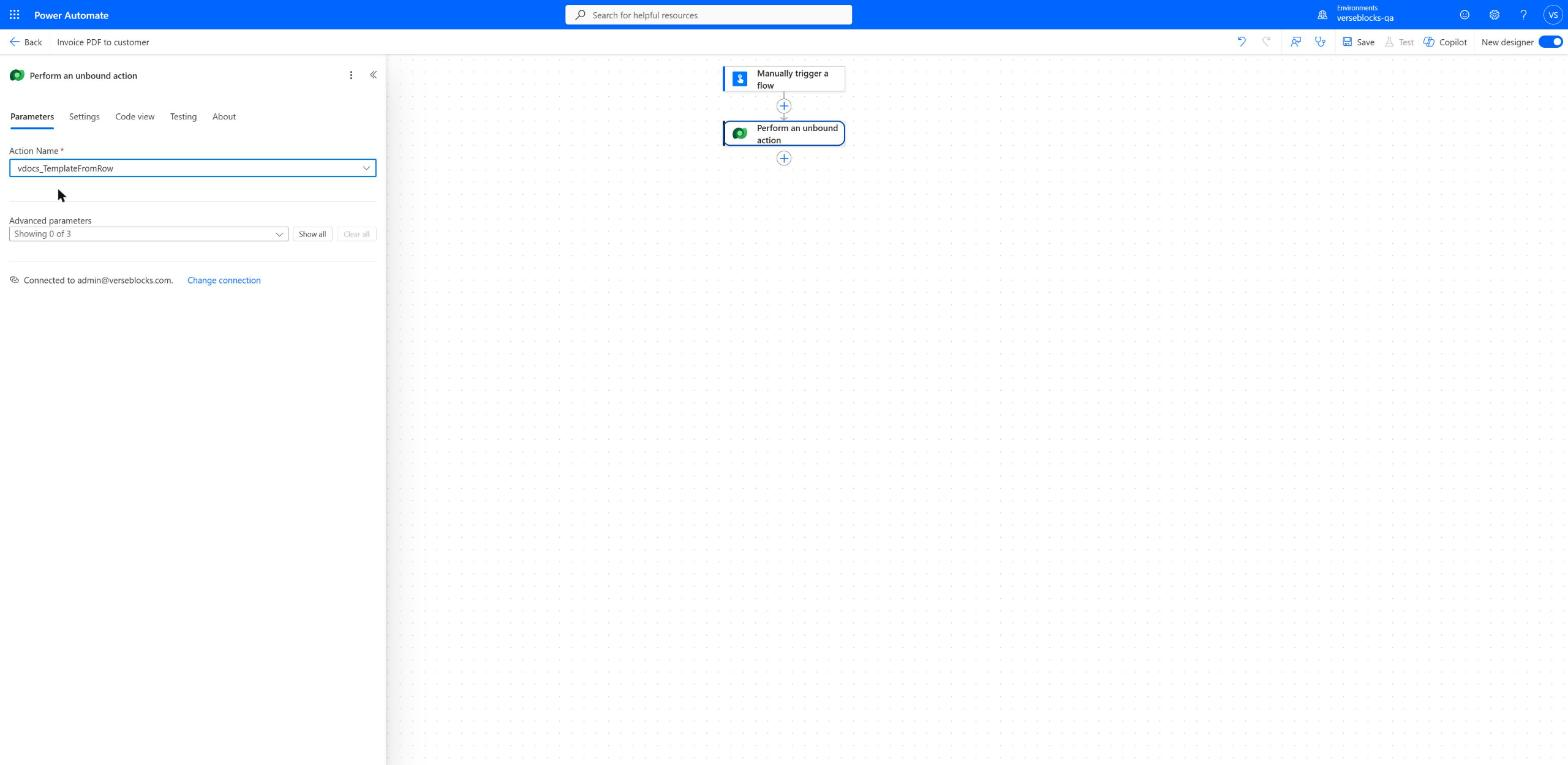
Worked example: invoice PDF, emailed
The flagship pattern. Render a Word template straight to PDF and send it.
- 1Get the template file. From SharePoint, OneDrive, or a
vdocs_templaterow. - 2Compose the data as JSON.
- 3Perform an unbound action →
vdocs_TemplateDocx, withFileContent= the template,Data= your Compose, andOptionsasking for PDF. - 4Send an email, attaching
base64ToBinary(...OutFileContent)with the name fromOutFileName.
{
  "customer": { "name": "Contoso Ltd", "city": "Seattle" },
  "invoiceNumber": "INV-1042",
  "total": 1250.00,
  "lines": [
    { "item": "Consulting", "qty": 10, "price": 100.00 },
    { "item": "Support",    "qty": 1,  "price": 250.00 }
  ]
}{
"outputFormat": "pdf",
"culture": "en-GB",
"onMissing": "error"
}"outputFormat": "pdf" and you get a real PDF back.Archival PDFs (PDF/A)
Add pdfConformance alongside outputFormat to produce an archival PDF — fonts embedded, colour device-independent, nothing referenced from outside the file. This is what records-retention and government archival requirements ask for.
{
  "outputFormat": "pdf",
  "pdfConformance": "PDF/A-2b"
}| Level | Use when |
|---|---|
PDF/A-1b | The most widely mandated, and the most restrictive. Choose this if a requirement just says “PDF/A”. |
PDF/A-2b | Adds transparency, layers and JPEG2000. A good default for modern documents. |
PDF/A-3b | As A-2b, but allows arbitrary file attachments inside the PDF. |
Spelling is forgiving — PDF/A-1b, pdfa1b and pdf_a_1_b all mean the same thing. An unrecognised value is an error rather than a silent downgrade to an ordinary PDF, because the dangerous outcome here is believing you have an archival file when you do not.
pdfConformance works the same way when generating from a Dataverse record — vdocs_TemplateFromRow, vdocs_GenerateAndAttach and vdocs_TemplateBatch. Note that batch asks for PDF via batchOutput rather than outputFormat, but takes pdfConformance alongside it unchanged.
EDITION_REQUIRED.PDF/A also uses only the primary conversion engine, so a conformance request never falls back to an engine that would produce an ordinary PDF instead.
Worked example: straight from a Dataverse row
When the data already lives in Dataverse, do not assemble JSON by hand. Give vdocs_TemplateFromRow a template and a row id, and it resolves the template’s binding against that record — related records included.
Datanames the template and the target row.- Everything in Template Syntax §7 applies: formatted values by default,
_rawwhen you want the underlying one, related tables as arrays. - Use
vdocs_GenerateAndAttachinstead if you want the result attached to the record’s timeline in the same call — it is what the Generate document button uses.
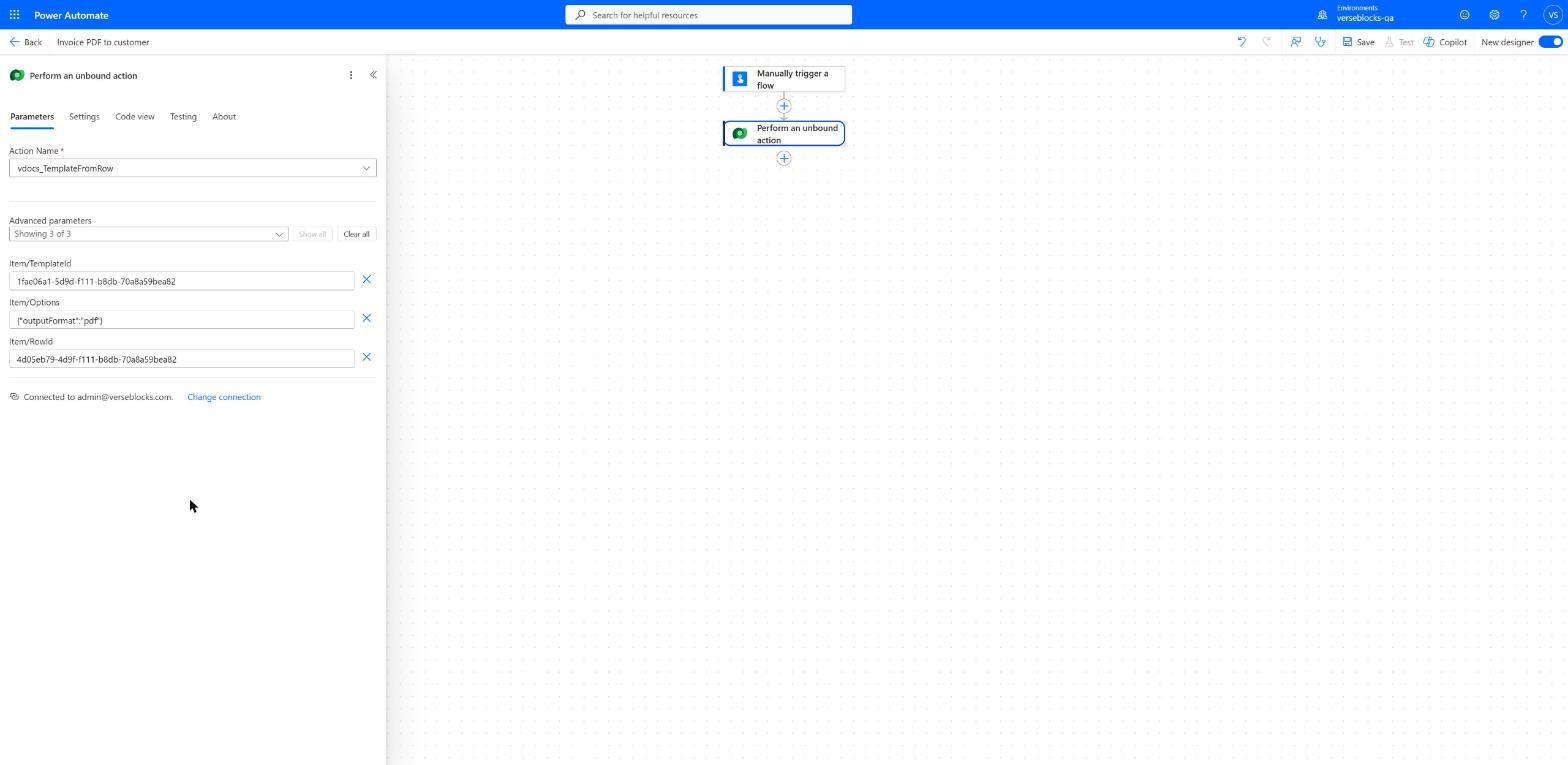
item/ prefix the Dataverse connector adds to every parameter name — the Action Reference lists them without it.Worked example: many rows at once
vdocs_TemplateBatch generates for many records in one call. Name the rows explicitly with RowIds, or let it select them with FetchXML in Options. When both are supplied, RowIds wins.
Worked example: a barcode in a document
- 1
vdocs_BarcodeGeneratewithDatacarrying the payload — an order number, a serial, a URL — andOptionsnaming the symbology. - 2Pass the returned image into
vdocs_TemplateDocxas a named image inOptions.images. - 3Place
{{image:barcode width=40mm}}in the template where it should appear.
{ "type": "qr", "format": "png", "margin": 10 }qr, code128 and ean13 are supported, as PNG or SVG. EAN‑13 requires a 12 or 13 digit payload and rejects anything else rather than producing an unscannable image. vdocs_BarcodeRead decodes in the other direction, detecting the symbology automatically.Digitally signing a PDF
vdocs_PdfSign applies a cryptographic signature to a PDF using a certificate you supply. The signature proves two things to anyone who opens the document: that it has not changed since it was signed, and who signed it.
{
  "pfx": "<base64 of a .pfx/.p12 file, including its private key>",
  "password": "..."
}{
"reason": "Approved by finance",
"location": "London, UK",
"contactInfo": "finance@contoso.example",
"fieldName": "FinanceApproval"
}- Sign more than once by calling it again with a different
fieldName. Reusing a name replaces that signature instead of adding one. - Signatures are invisible — they carry full cryptographic weight and every reader shows them in its signature panel, but nothing is drawn on the page. Placing a visible signature graphic would require a drawing library that is not available in the Dataverse plug-in sandbox.
- Sign last. Anything that modifies the PDF afterwards — a watermark, a merge, adding pages — invalidates the signature, which is exactly what a signature is for.
Handling errors
Every action fails as a standard Dataverse action error: the step turns red and the error body is JSON.
{ "code": "TEMPLATE_FIELD_MISSING", "message": "Template field 'customer.vat' was not found in Data." }Add Configure run after → has failed on a following step to branch, and parse the body to read code. Branch on the code, never on the message text — codes are stable, wording is not.
The full list is on Limits & Errors.
What VerseDocs does not do
Worth knowing before you design a flow around an assumption. These are deliberate boundaries, not gaps waiting to be filled:
- No OCR. Text is extracted from PDFs that contain real, selectable text. A scanned image is not made searchable. Recognise the text upstream with AI Builder, then hand VerseDocs the result.
- No AI extraction or classification. VerseDocs reads structure it already understands — PDF text layout, form fields, template tokens. Pulling unstructured fields out of a free-form document is AI Builder’s job, upstream.
- No translation. Translate the data before it enters a template, not the rendered document afterwards.
- No CAD or InfoPath conversion. The conversion ladder handles Word, Excel and PowerPoint.