Licensing
VerseDocs works fully from the moment you import it. A license key removes the trial watermark and unlocks the utility pack — across your whole Microsoft tenant, from a single key.
What the trial does and does not do
The trial is not a crippled demo. Every action is present, every feature works, and there is no time limit. Two things separate it from a licensed environment:
- Every document carries a visible VERSEDOCS TRIAL watermark — in every output format: PDF, Word, Excel and PowerPoint.
- The 38 utility-pack actions refuse to run, returning
UTILITY_LICENSE_REQUIRED. Document generation and conversion are not part of the utility pack and work throughout the trial.
That means you can build and prove an entire document-generation solution — templates, bindings, flows, the button — before paying anything, and the only difference afterwards is that the watermark stops appearing.
VerseDocs Premium
There is one plan. It is tenant-scoped: a single key covers every Dataverse environment in your Microsoft tenant — production, sandbox, developer, and environments you create in future — with no per-environment top-ups and nothing to re-order as you grow.
See pricing for the current price.
Buying from inside the product
The Licensing page in the VerseDocs Admin app already knows your org and tenant id, so a self-serve purchase needs nothing looked up or sent to anyone first.
- 1Open the VerseDocs Admin app → Licensing.
- 2Click Buy VerseDocs Premium. Stripe Checkout opens in a new browser tab. This is deliberate: a model-driven app page runs inside an iframe and Stripe refuses to load in one.
- 3Complete payment. The order already carries your tenant id, so the key that comes back is scoped to your tenant automatically.
- 4The tab returns to the Licensing page and fetches the key that was just issued. The key is displayed on screen immediately, before anything else happens with it.
- 5The page then tries to save the key into the
vdocs_LicenseKeyenvironment variable for you. If that succeeds, the status card refreshes to licensed and you are done.
Activating a key you already have
A VerseDocs key is a single line of text beginning VDLIC1., roughly 600 characters long. There are two places to put it, and they do the same thing.
From the Licensing page (recommended)
- 1Open VerseDocs Admin → Licensing.
- 2Paste the key into the license key box and click Apply. The page validates it and reports what it found — including telling you plainly if the key is for a different tenant.
- 3The status card refreshes. You want
Valid.
From the environment variable
- 1Maker portal → Solutions → VerseDocs → Environment variables →
vdocs_LicenseKey. - 2Set its current value to the key.
- 3Publish all customizations.
- 4Call
vdocs_Pingor refresh the Licensing page and confirm the license readsValid.
vdocs_LicenseKey and ship that zip to someone else. A solution export bakes the source environment’s environment-variable values into the package, which would hand your license key to whoever imports it.Reading the license status
vdocs_Ping always returns a license object, and the Licensing page renders it. This is the single source of truth for “why is my output still watermarked”.
{
  "license": {
    "isLicensed": true,
    "reason": "Valid",
    "edition": "Premium",
    "scope": "tenant",
    "expiryUtc": "2027-08-13T00:00:00Z",
    "isPerpetual": false
  },
  "executingOrgId": "...",
  "executingTenantId": "..."
}| reason | What it means | What to do |
|---|---|---|
Valid | Licensed. Clean output. | Nothing. |
NoKey | No key is set. This is the trial, by design. | Set a key if you want clean output. |
Malformed | The stored key does not parse. | Re-paste it — a character was almost certainly dropped or a line break introduced. |
SignatureInvalid | The signature does not verify: the key was corrupted or altered. | Request a fresh key. |
ScopeMismatch | The key is genuine but issued for a different tenant or org. | Copy this environment's tenant id from the Licensing page and check it against the key you were issued. |
Expired | Past its expiry date. | Renew. |
isLicensed is true only when reason is Valid. Any other value means output is watermarked.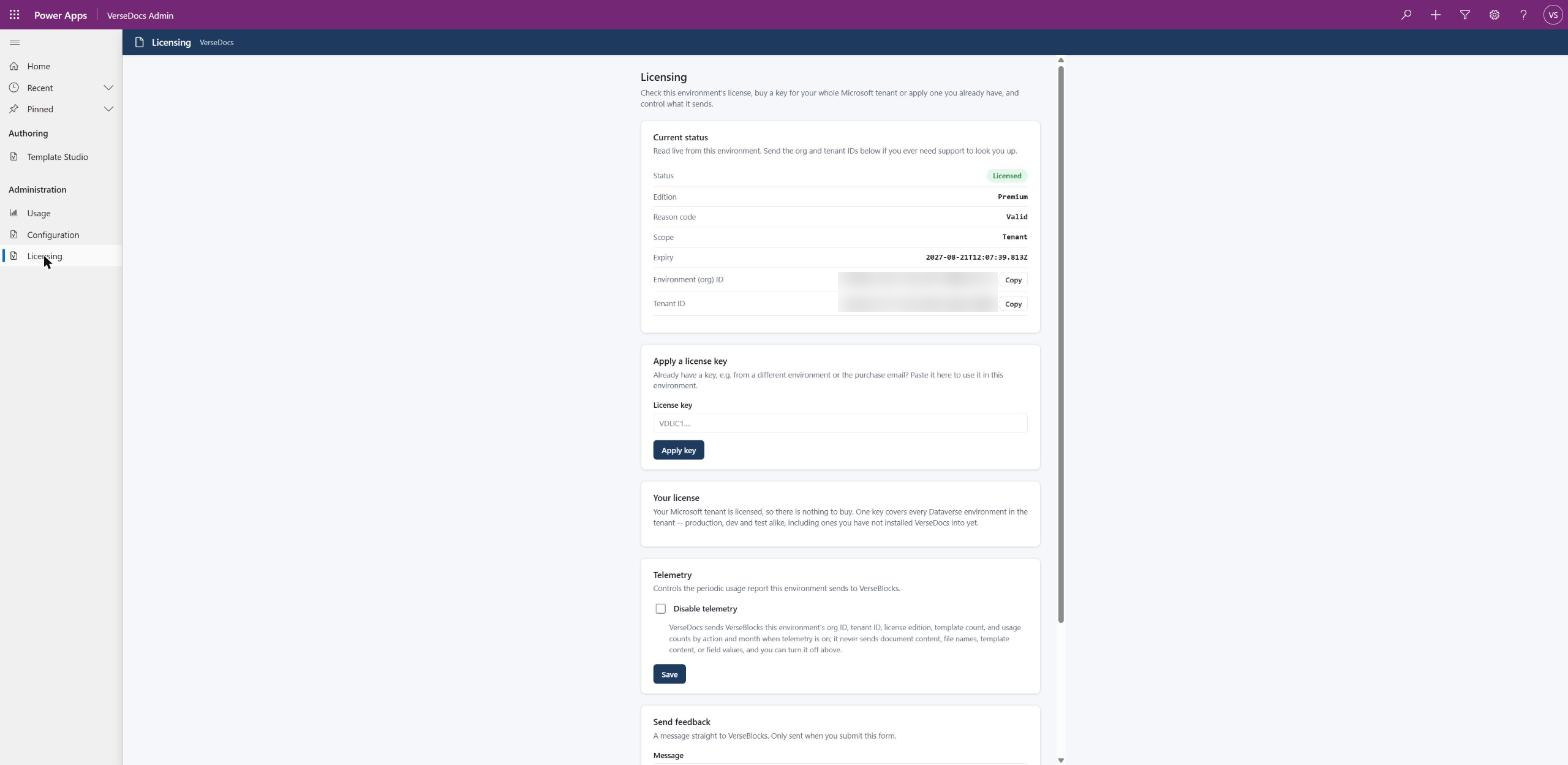
Valid is what a working key looks like, and Tenant scope is the whole point: one key, every environment in your Microsoft tenant. The org and tenant IDs are blurred here.One key, one tenant
A Premium key is issued to one Microsoft tenant and carries that tenant’s id inside its signed payload. Every environment in that tenant — production, sandbox, developer, and any you create later — validates against it, so a single key covers your dev and test work with nothing extra to buy.
Presented in any other tenant, the same key validates as ScopeMismatch and buys nothing: output stays watermarked and the 38 utility-pack actions stay locked. A key passed to another company is therefore worth nothing to them.
| Where the key is used | Documents | Utility pack (38) |
|---|---|---|
| Any environment in the tenant it was issued to | Clean, no watermark | Unlocked |
| An environment in a different tenant | Watermarked (ScopeMismatch) | Locked |
| No key at all | Watermarked (NoKey) | Locked |
Renewals and changes
A Premium license renews annually. On renewal a new key is issued and emailed to the billing address on the subscription; paste it in the same way as the original. Cancelling stops the renewal — the existing key keeps working until its expiry date, after which output reverts to watermarked and the utility pack locks again. Nothing is deleted and no template stops working.
To change payment details or cancel, use the billing portal link on the Licensing page.