Generating from a record

The Generate document button puts document generation in front of the people who need it, on the record they are already looking at — with no flow to build and nothing for them to learn.

Before you start

  • Enable the table. VerseDocs Admin → Administration → Configuration, tick the table. See Configuration.
  • Have at least one active template bound to that table. The picker only lists active templates whose bound table matches the record you are on.
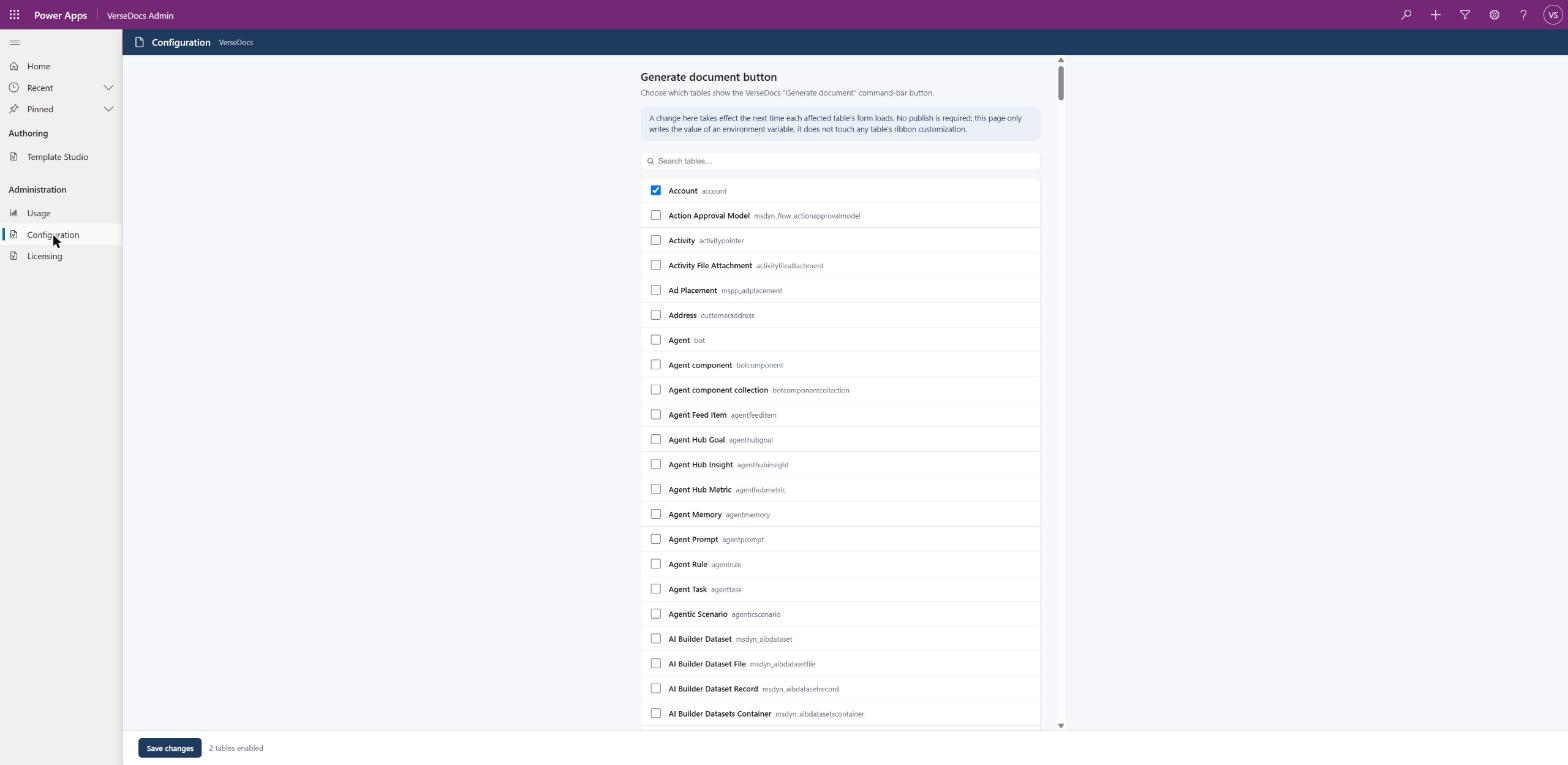
The VerseDocs Configuration page listing every Dataverse table with checkboxes, Account ticked, and a footer reading 2 tables enabled.
Tick the tables that should show the button. The change lands on the next form load — no publish needed.

From a record form

  1. 1Open any saved record of an enabled table.
  2. 2Click Generate document on the command bar. It sits just after the Save and New buttons.
  3. 3Pick a template from the dialog.
  4. 4Choose whether to attach the result to the record’s timeline as a note, or download it directly. Attaching is the default.
  5. 5Generate. The document is produced from the record you are on.
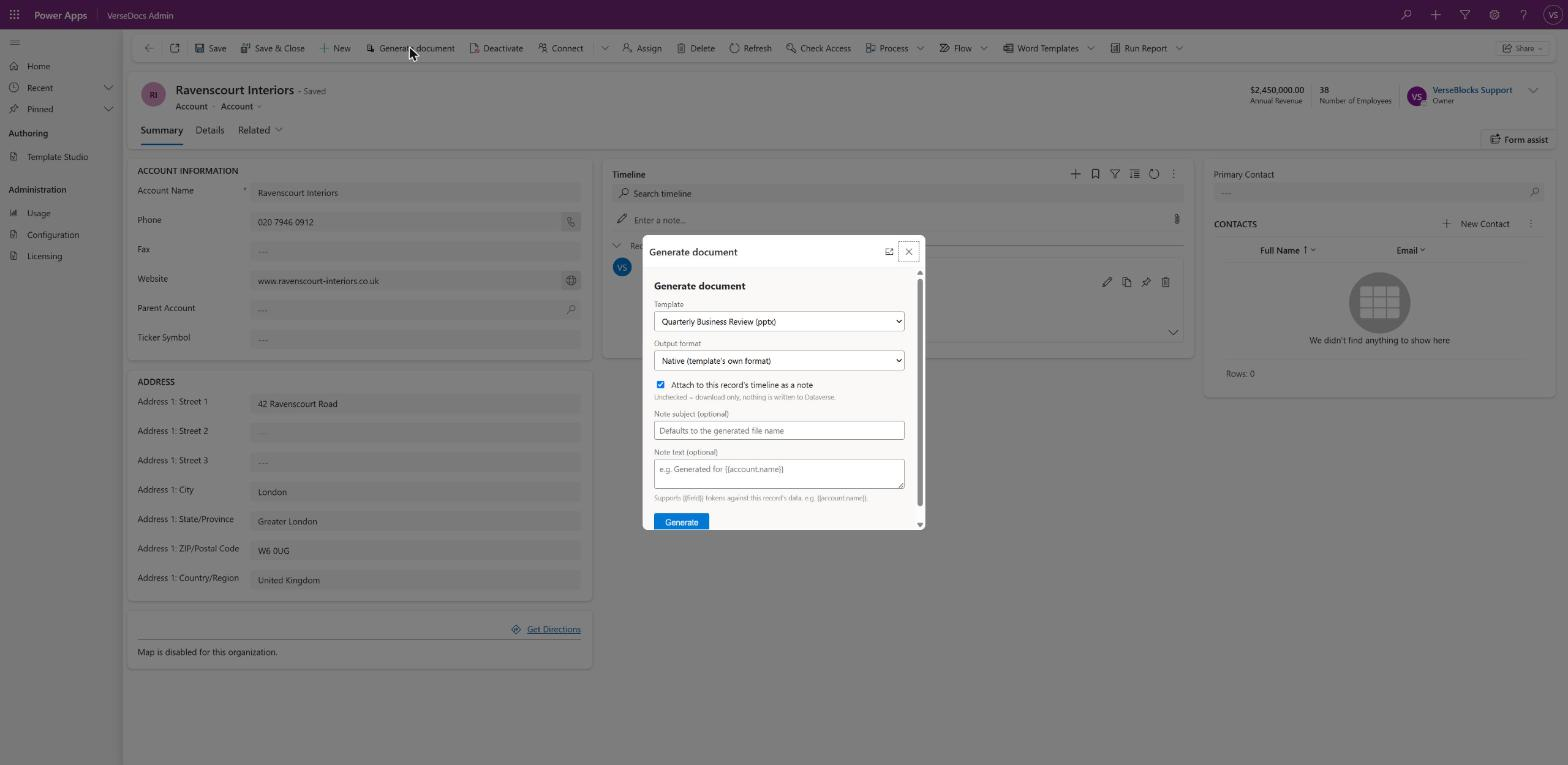
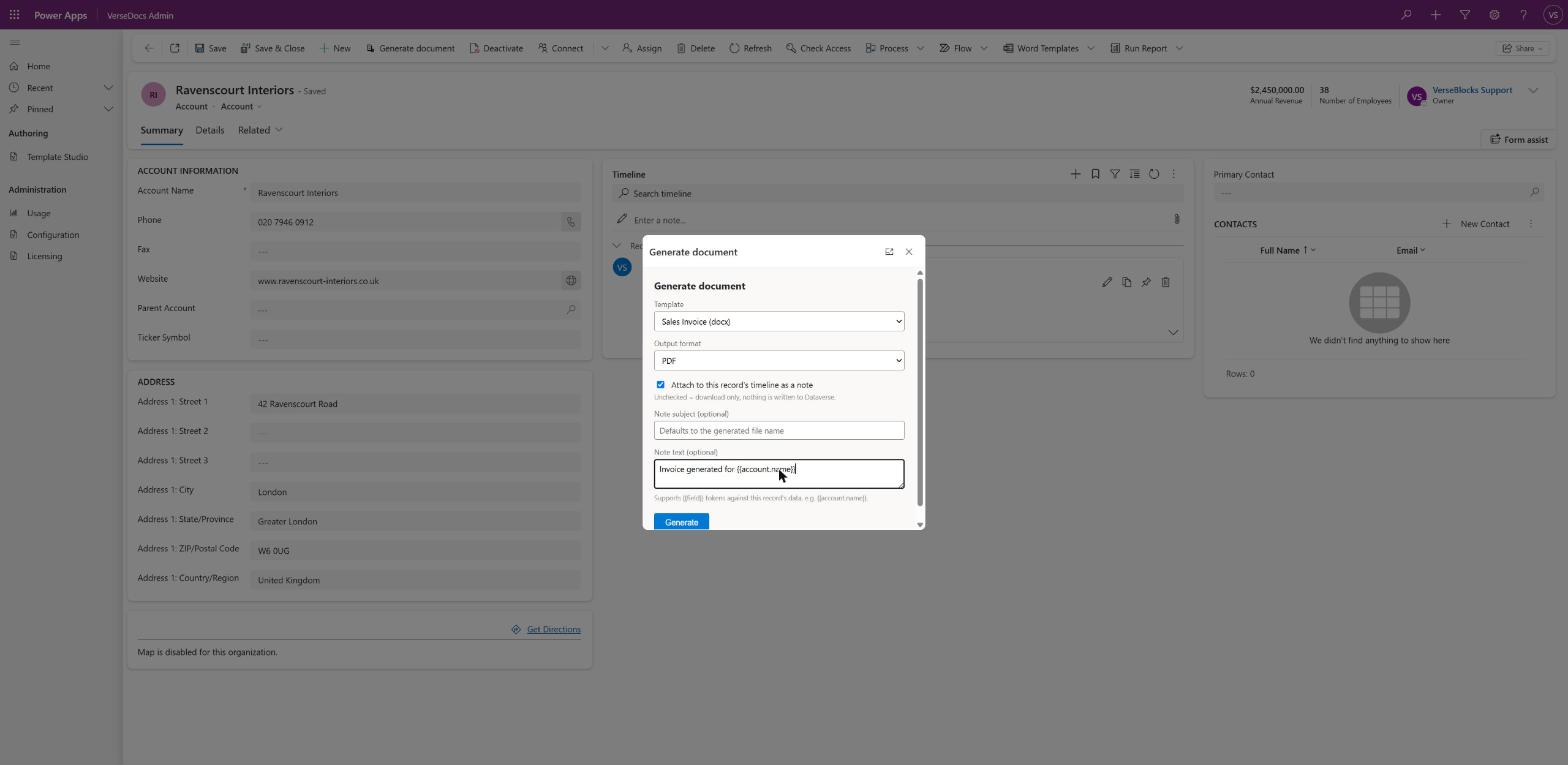
The Generate document dialog with a template dropdown, an output format dropdown, an attach-to-timeline checkbox and optional note fields.
The dialog as it opens. Only templates bound to this table appear in the picker.
The Generate document dialog open on a contact record, showing template, output format, and attach-to-timeline options
The dialog on a contact record. Pick a template, choose the output format, and decide whether to attach the result to the record’s timeline. The optional note subject and text accept {{field}} tokens resolved against the same row.
The button is disabled on an unsaved record. There is nothing to generate from until the row exists.
An account form with Generate document in the command bar between New and Deactivate.
The button sits on the command bar of any table you enabled.
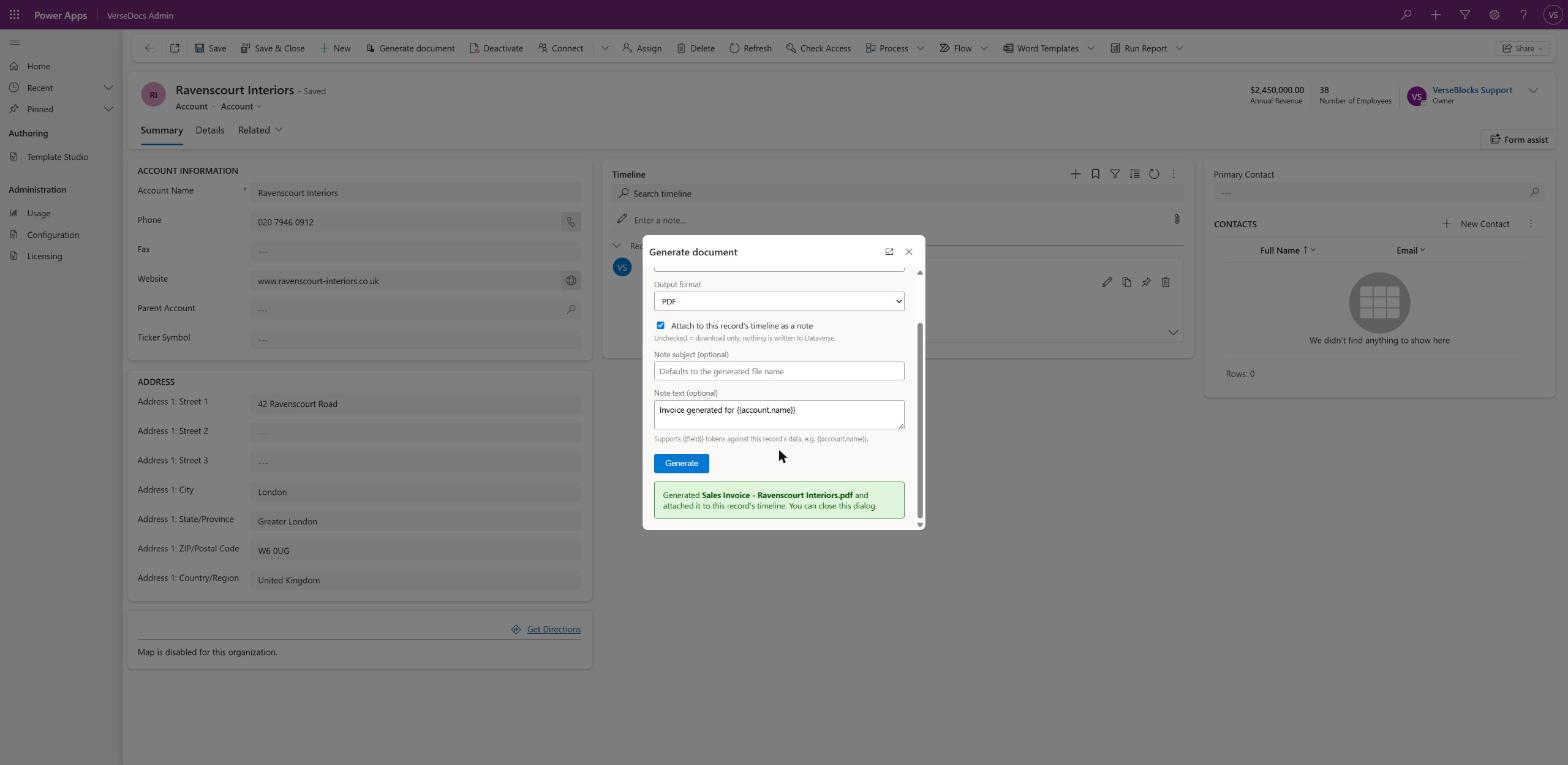
The Generate document dialog showing a green message confirming the PDF was generated and attached to the record’s timeline.
On success the dialog names the file it wrote and where it went. Scroll down inside the dialog — on shorter screens the confirmation sits below the fold.
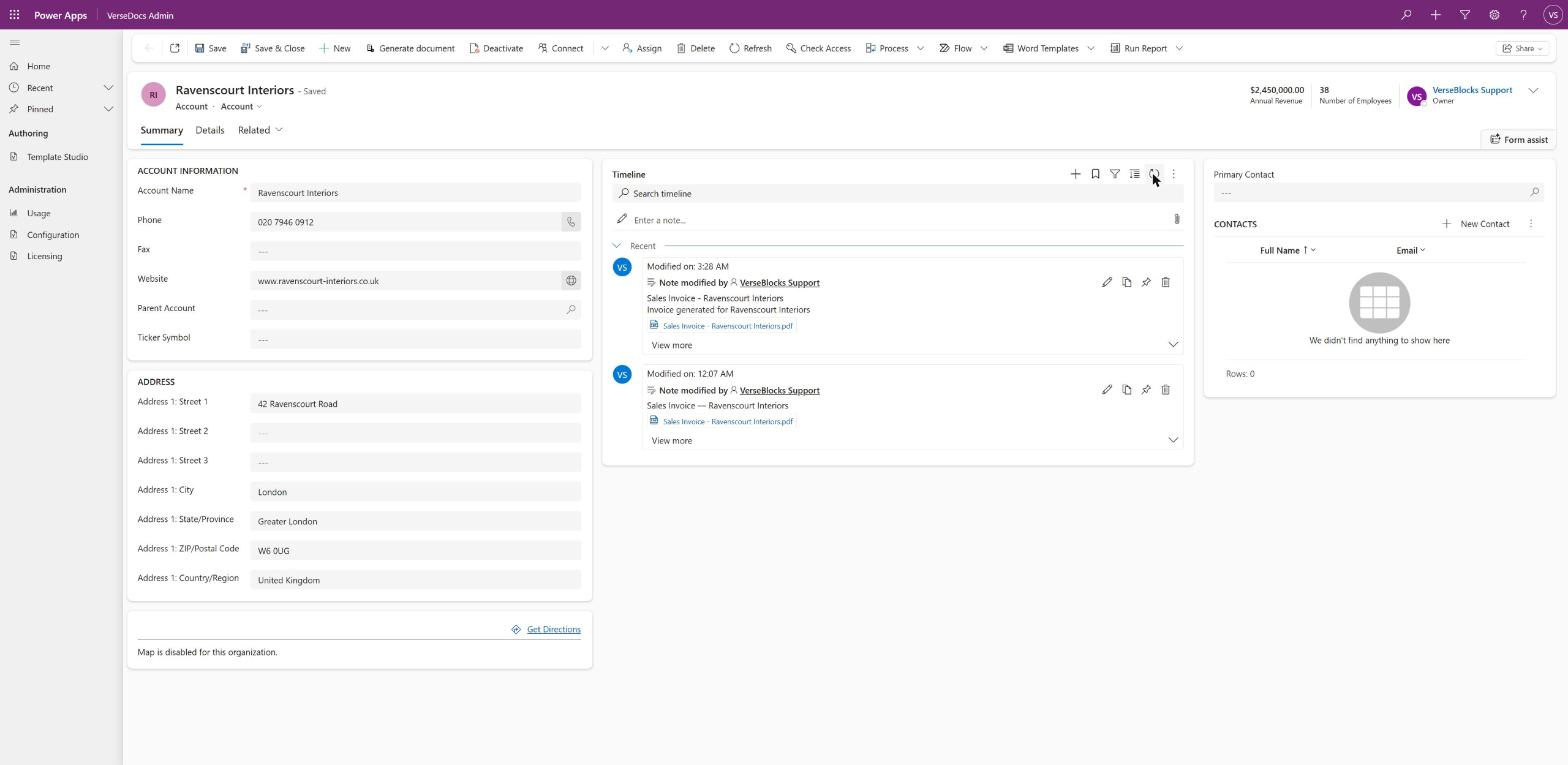
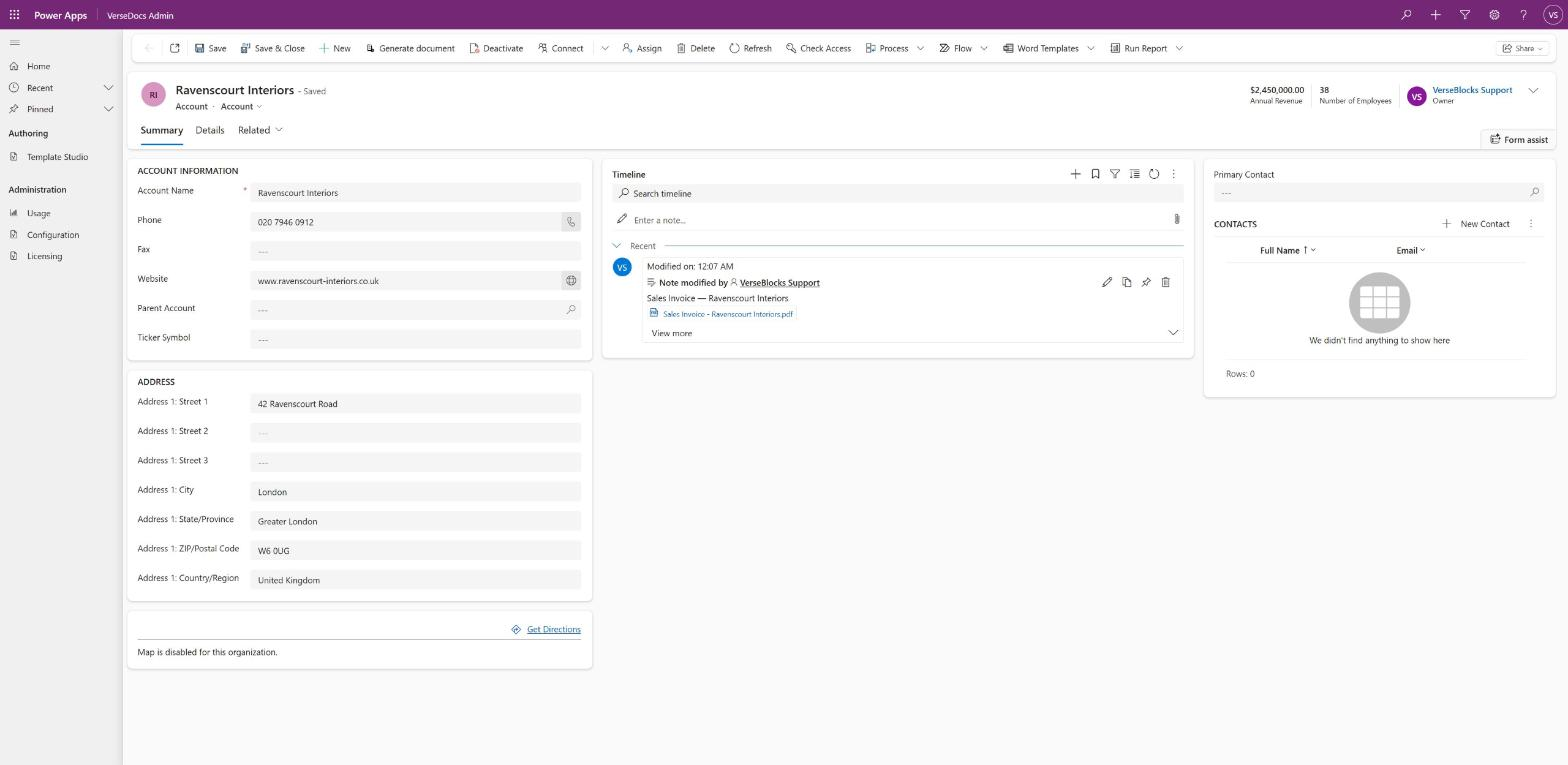
A record timeline showing a note titled Sales Invoice with the text Invoice generated for Ravenscourt Interiors and an attached PDF.
The note lands on the timeline with the token substituted and the file attached.

Bulk generation from a list

The same button appears on the table’s main grid and on subgrids, disabled until you select at least one row.

  1. 1Select the rows you want documents for.
  2. 2Click Generate document.
  3. 3Pick one template — it is applied to every selected row.
  4. 4Watch the progress. Records are processed a few at a time rather than all at once, so a large run does not overwhelm the environment.
  5. 5Read the summary: how many succeeded, and for each failure, which record and why.
There is a hard cap of 100 records per run. Select more and you get a plain message asking you to select fewer — deliberately, rather than silently generating for only some of them. For larger volumes use a flow.
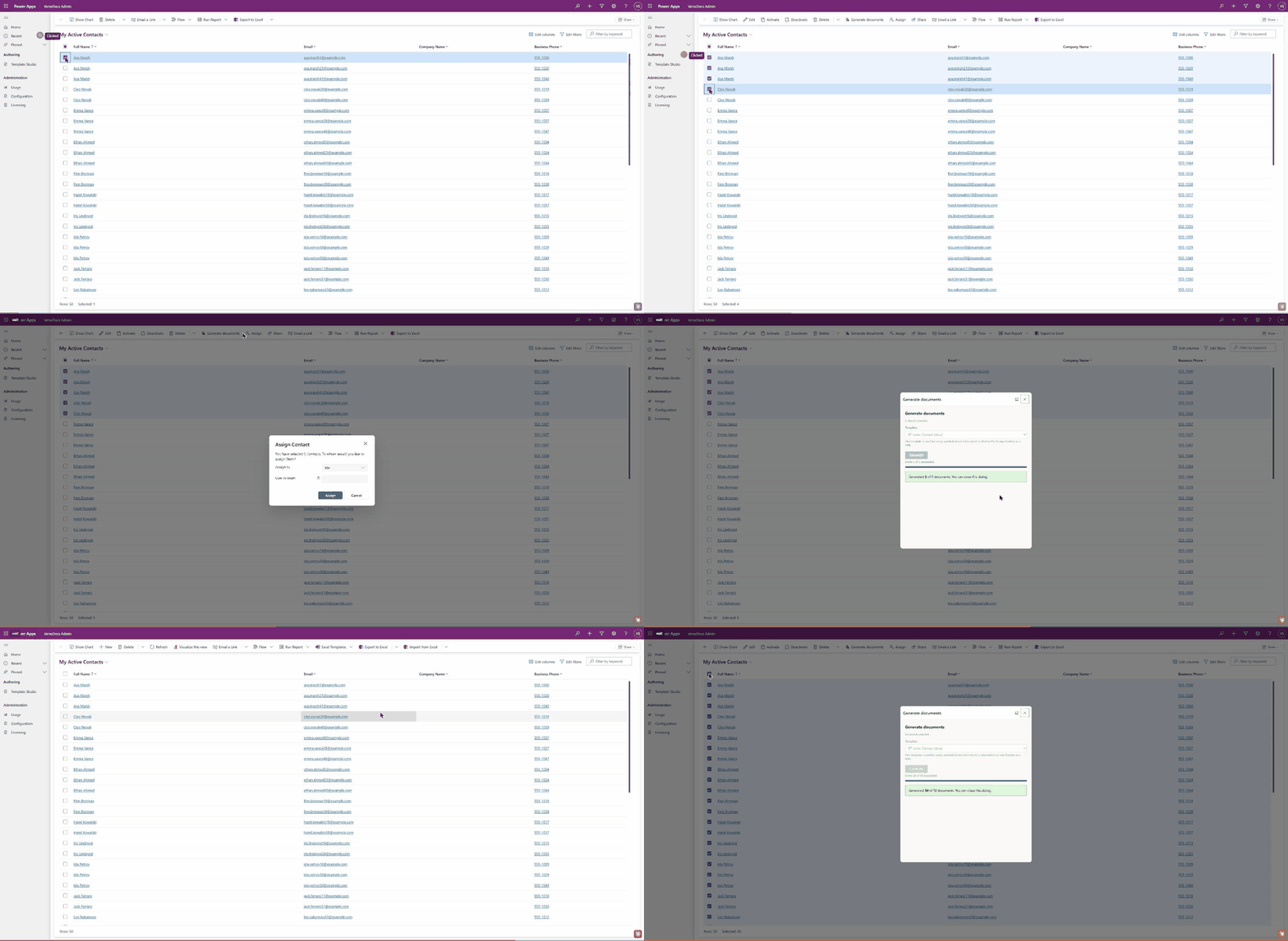
Recording of bulk generation: rows are selected in a contact list, the Generate documents dialog opens, and it finishes reporting Generated 50 of 50 documents
Bulk generation from a list, selecting rows through to a finished run of 50. One template is applied to every selected record, each document attaching to its own record’s timeline, with progress reported as it goes and a final count at the end.
A partial failure does not roll anything back. Documents that generated successfully stay attached; the summary tells you exactly which rows to retry, and re-running for those rows is safe.
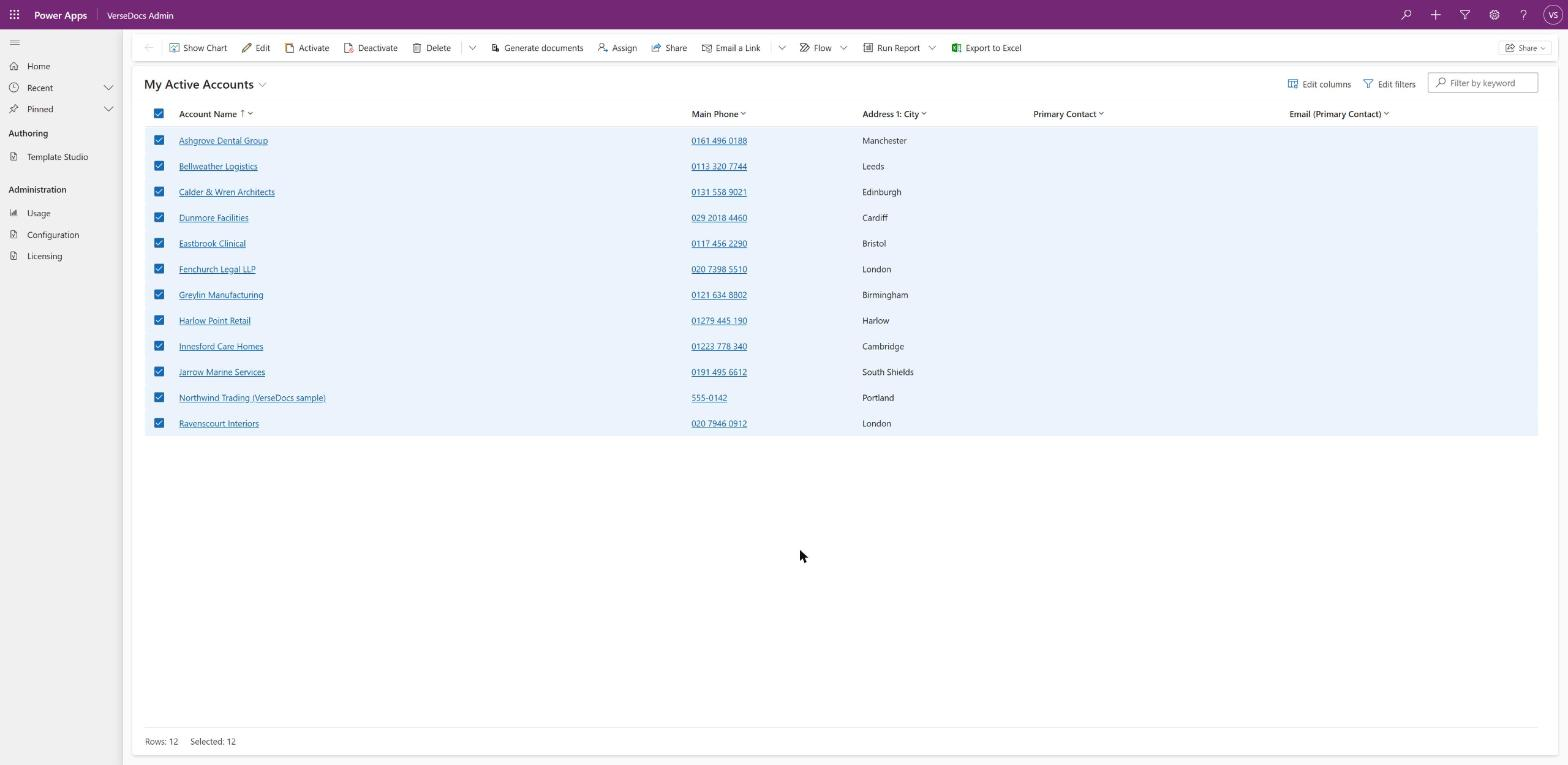
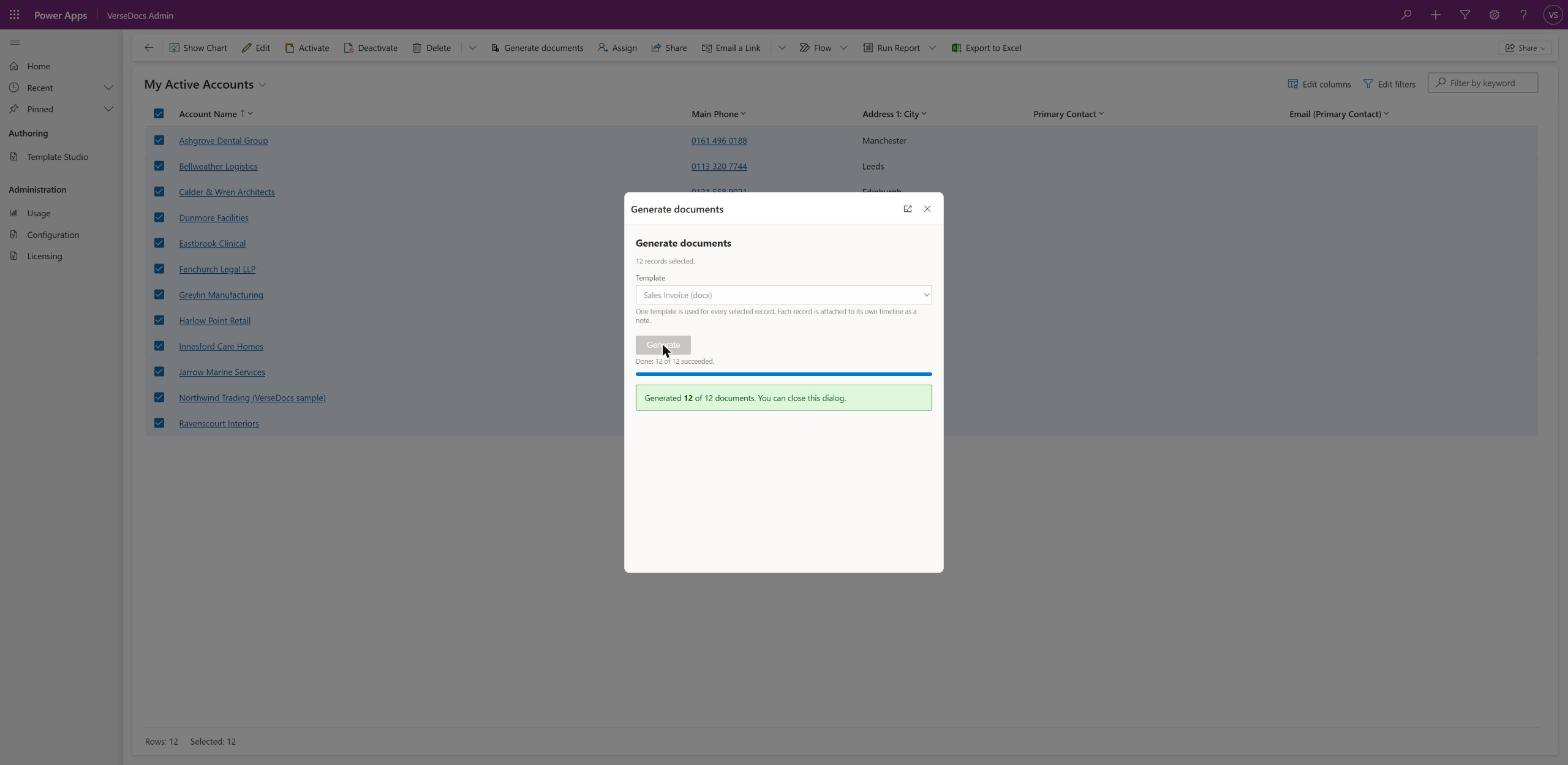
An accounts list view with all twelve rows selected and a Generate documents button in the command bar.
Select rows and the button becomes Generate documents, plural.
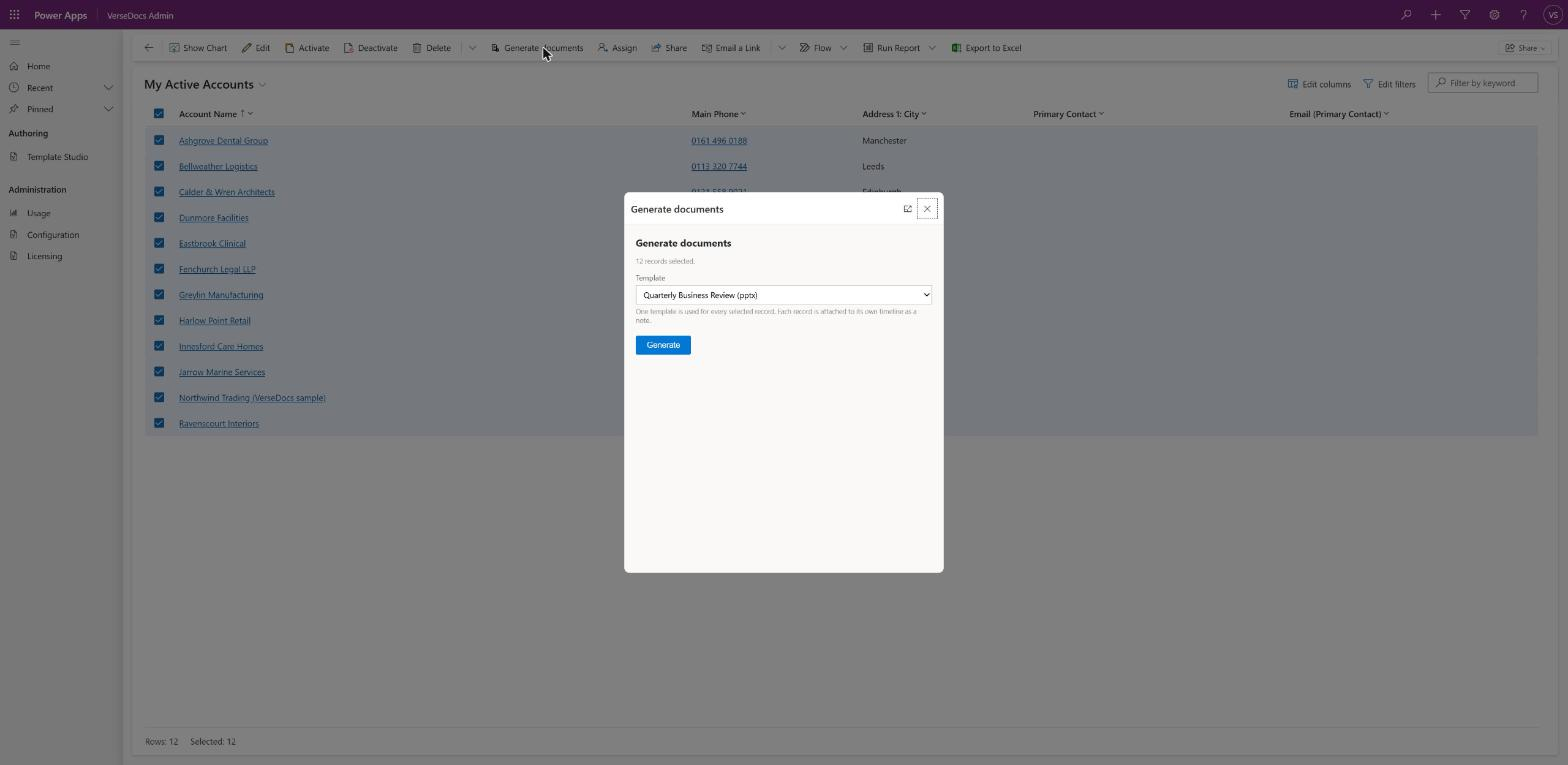
The bulk Generate documents dialog reporting twelve records selected with a single template picker.
One template for the whole selection. Each record gets its own document on its own timeline.
The bulk dialog with a completed progress bar and a message reading Generated 12 of 12 documents.
Progress is reported as it goes, and the final count tells you if any record failed. Twelve records here; the cap is 100 per run.

Who can do this, and as whom

Everything runs as the clicking user — never elevated. Each read of the record and the note creation itself are subject to that user’s own Dataverse privileges, so a user who cannot see a record cannot generate a document from it, and nothing about this button widens anyone’s access.

ToA user needs
See the buttonNothing beyond access to the table's form or grid.
Generate a documentRead on the record.
Attach to the timelineCreate on Note (annotation).

Troubleshooting

The button is not there

  • The table is not enabled. Tick it in Administration → Configuration.
  • You are looking at a cached form. Reload the page — the enable rule is read on form load.
  • It is in the overflow menu because the window is narrow. Widen the window or check the overflow.

The picker is empty

There is no active template whose bound table matches this record’s table. Check both in Template Studio — a template bound to account will not appear on a contact, and a deactivated template appears nowhere.

Generation failed with an error code

The message names a code. The two you are most likely to see from the button are TEMPLATE_FIELD_MISSING — the template references a field that does not exist, which the Validate tab in Template Studio would have caught — and TEMPLATE_INACTIVE. Every code is listed on Limits & Errors.

The document has a TRIAL watermark

This environment is not covered by a valid license key. See Licensing.