Installation
VerseDocs is a single managed solution zip. Import it and every action works immediately — there is no pre-import step, no Azure resource to provision and no prerequisite of any kind beyond a Dataverse environment.
Prerequisites
- A Dataverse environment. A production or sandbox environment with Dataverse provisioned, a Power Platform Developer Plan environment, or a Dataverse for Teams environment upgraded to a full one.
- Premium Power Platform licensing for the users who will call VerseDocs. Every
vdocs_*action is a Dataverse Custom API, which is a premium Dataverse capability — the same tier that gates plug‑ins and custom connectors. Users holding Dynamics 365 or Power Apps per‑user/per‑app licenses already have it. This is a Microsoft licensing cost, not a VerseDocs one. - System Customizer or System Administrator security role, to import the solution.
managedidentity record, they describe an older build; that path was removed deliberately because a mandatory pre-import step is incompatible with a one-click install.Import the managed solution
- 1Get the managed solution zip (
VerseDocs_<version>_managed.zip) from your purchase confirmation, or install from Microsoft AppSource. - 2Open the Power Apps maker portal and select your target environment in the top-right environment picker. Check this twice — importing into the wrong environment is the most common install mistake.
- 3Go to Solutions → Import solution, browse to the zip, then Next → Next → Import.
- 4Wait. A few minutes is normal — registering the plug-in package is the slow part. When it finishes, check the import log has nothing red in it. A clean first import with no dependency errors and no missing-component prompts is the expected result.
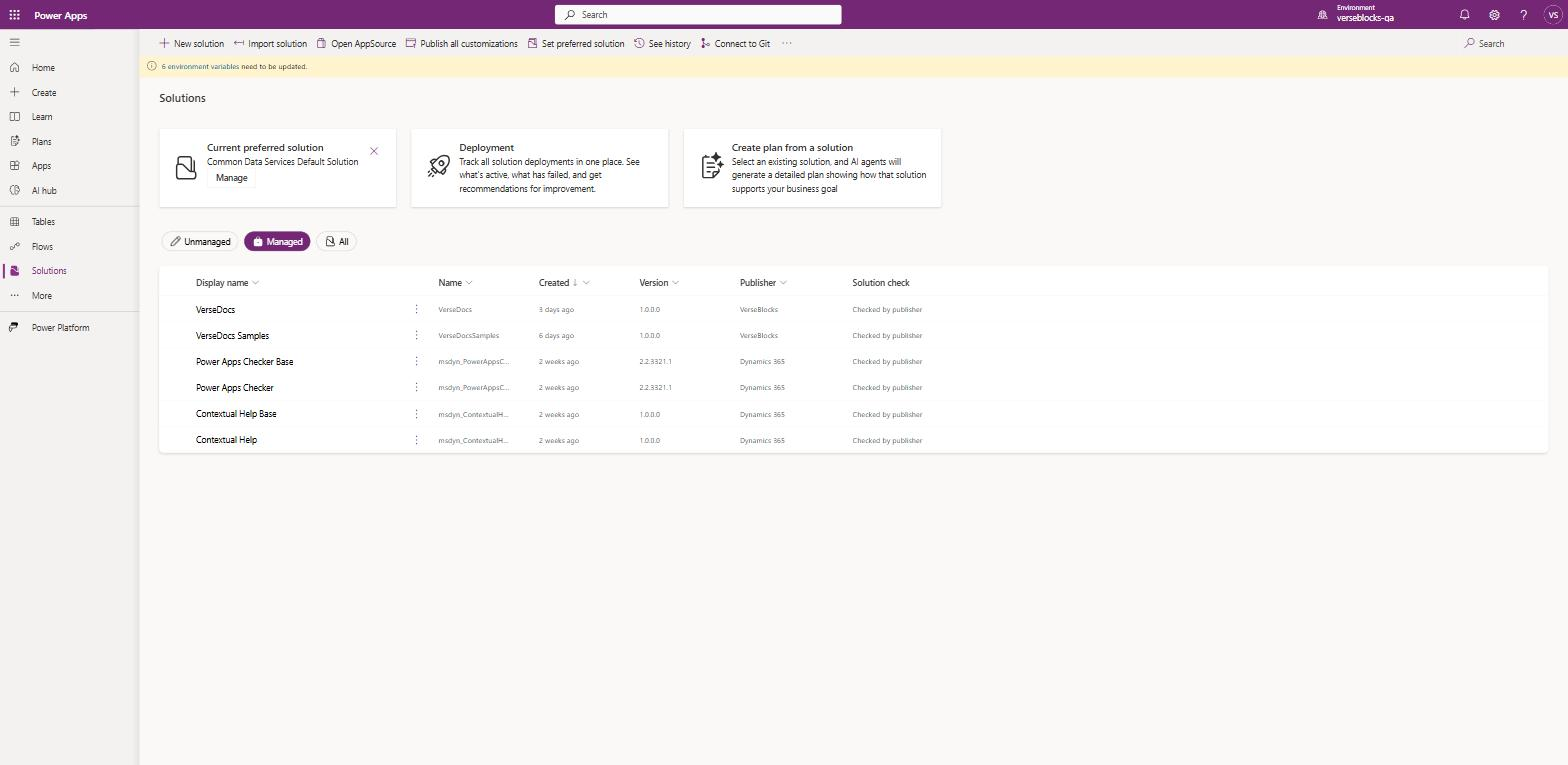
What the import installs
| Component | What it is |
|---|---|
vdocs_* | 69 Custom APIs — the document actions themselves. |
| Plug-in package | The engine (VerseDocs.Core, VerseDocs.Plugins) and every dependency it needs — the Open XML SDK, PDFsharp, ClosedXML, ImageSharp, ZXing and the rest — all bundled. Nothing else to install. |
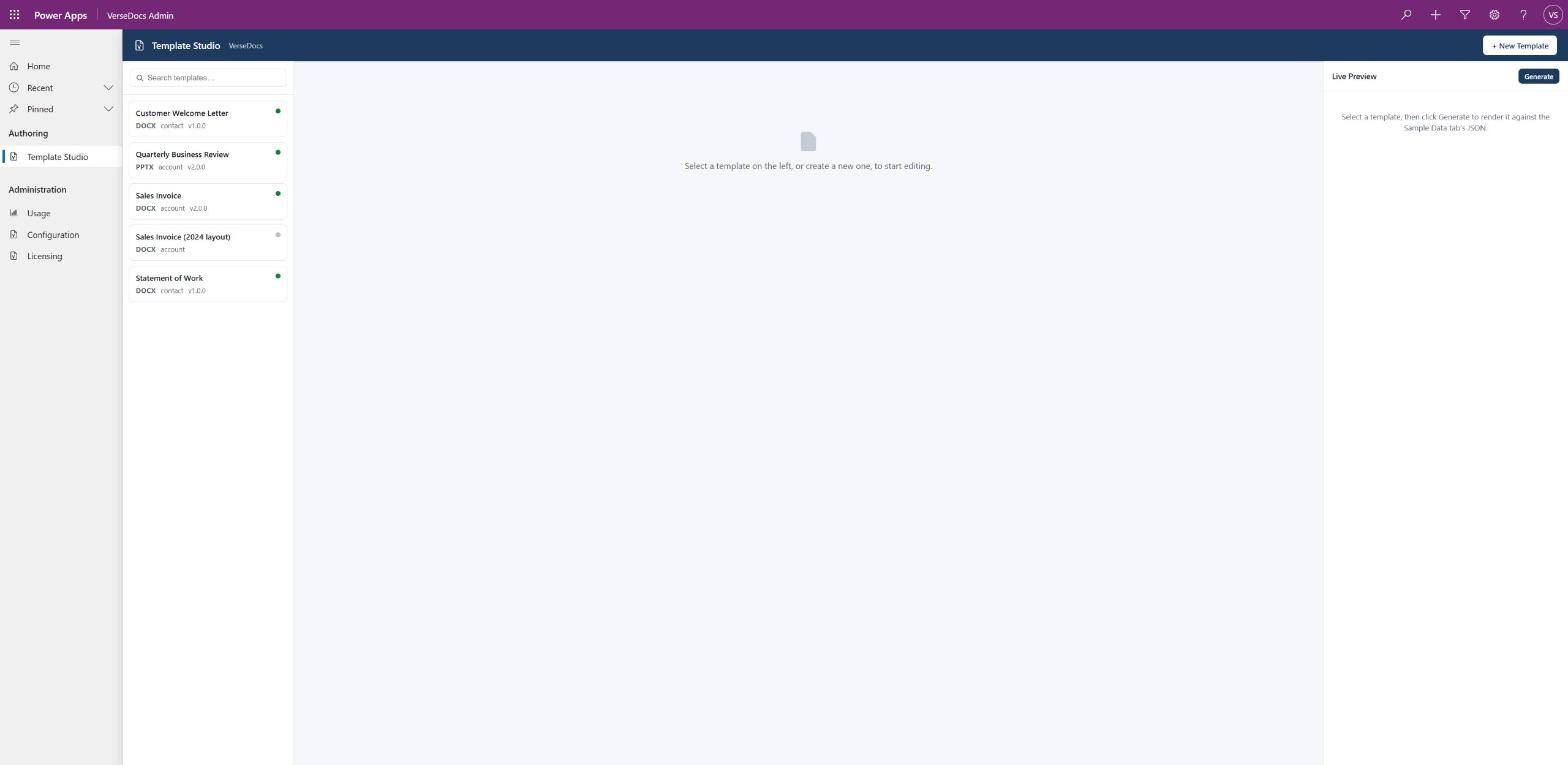
| VerseDocs Admin app | A model-driven app with Template Studio, Configuration, Usage and Licensing pages. Already built; you do not create it. |
vdocs_template | The table your templates live in, with its file column and data-binding manifest. |
vdocs_usage | A usage log table, a Recent Calls view, two charts and an admin dashboard. |
| Generate document button | A command-bar button for record forms and grids, off for every table until you enable it. |
| Environment variables | vdocs_LicenseKey, vdocs_TelemetryOptOut, vdocs_TelemetryEndpoint and vdocs_EnableExportPdfDocument. All ship unset. |
Verify the install
The fastest check is vdocs_Ping, which reports the build version, the license state and the environment it is running in. Call it from a flow, from the Licensing page in the admin app, or straight against the Web API:
GET https://<yourorg>.crm.dynamics.com/api/data/v9.2/vdocs_Ping
Accept: application/json
A healthy response names the version and reports a license state. On a fresh install with no key that state is NoKey, which is correct, not an error — it is the trial.
Updating to a newer version
Two different operations are both called “importing a solution”, and they behave differently when a release removes something. This distinction matters more than it sounds.
| Update | Upgrade | |
|---|---|---|
| How you get it | The default when you import over an existing solution. | Choose Upgrade in the import wizard, or pac solution import --stage-and-upgrade. |
| Adds and changes components | Yes. | Yes. |
| Deletes components the release dropped | No — they stay behind as orphans. | Yes — the new version is applied as the complete picture. |
So any release that retires a component must be applied as an upgrade. If you are unsure, an upgrade is always the safer choice.
Upgrades finish long after the progress bar does
pac solution importreturns exit code 0 even on a failed import. Its exit code is not evidence of anything.- Verify by querying for something you expect to have changed, and re-check after a few minutes before drawing a conclusion.
- The solution row’s
modifiedontimestamp advancing is a reliable sign the upgrade actually landed.
Uninstalling
Delete the managed solution from Solutions in the maker portal. Because the Generate document button is defined inside the solution rather than written into your tables’ own ribbons, removing VerseDocs removes the button with it and leaves no customisation layer behind on your tables.
vdocs_template table and every template row in it, including the uploaded template files. Export anything you want to keep first.